Three Ways to an Icon
Design one from a colour and a symbol, borrow the icon of any app already on the Mac, or drop in a PNG, HEIC, SVG, PDF or ICNS.
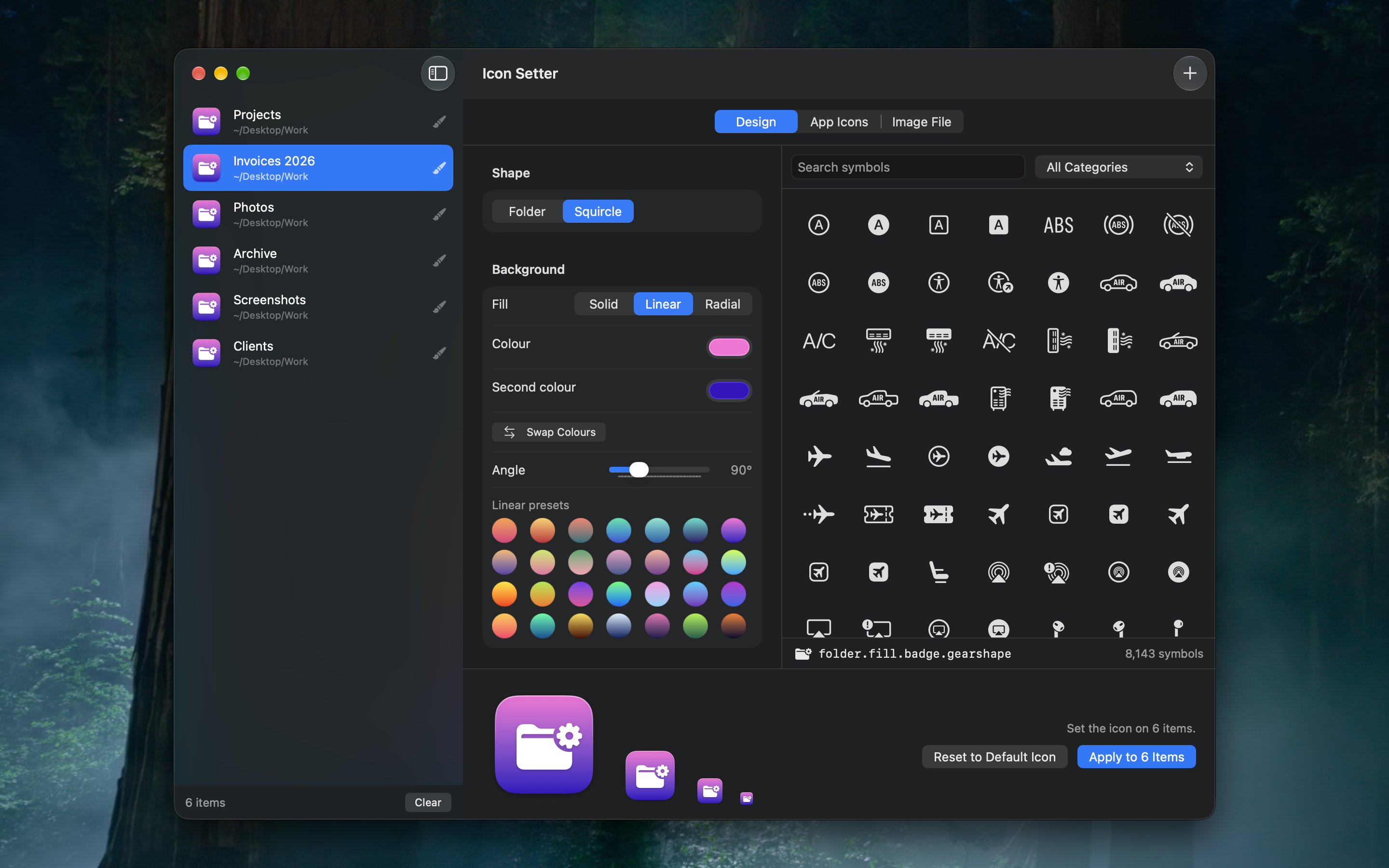
Give any folder or file a custom icon. Design one, borrow an app’s, or drop in an image.
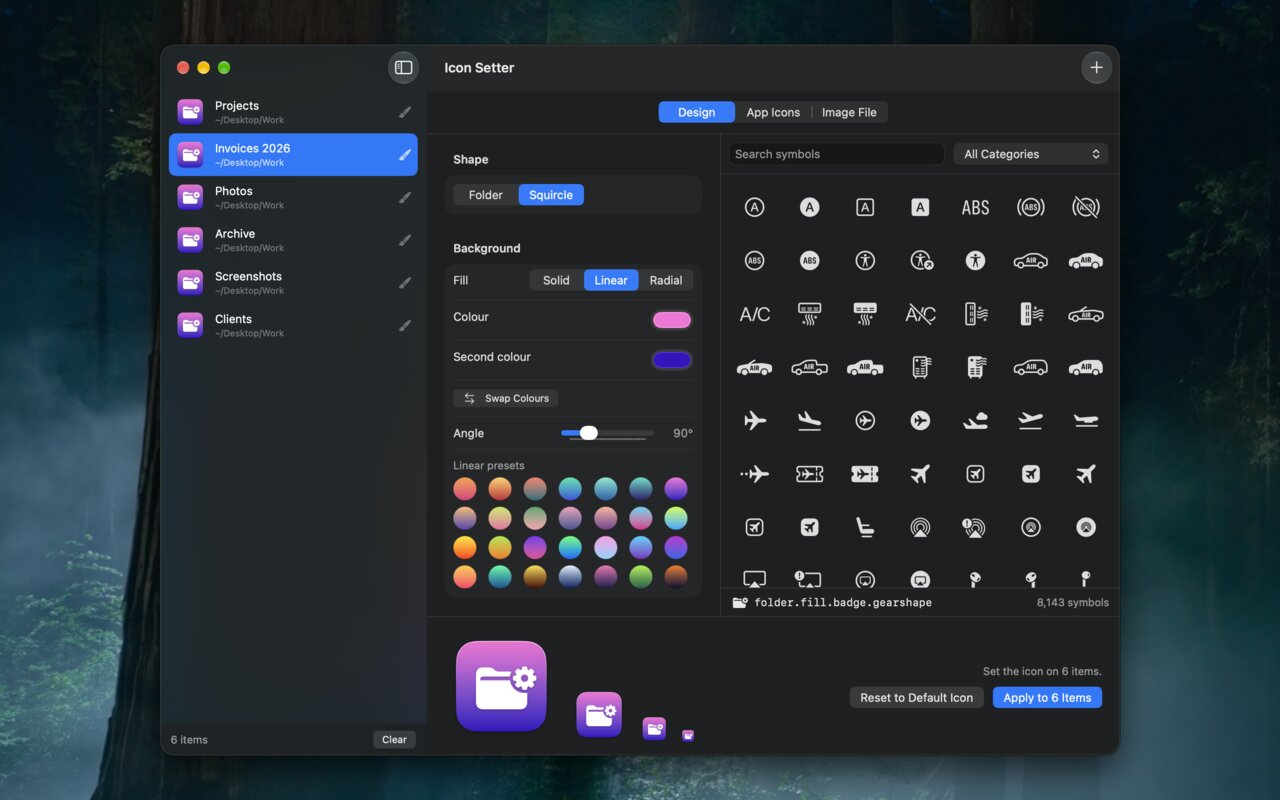
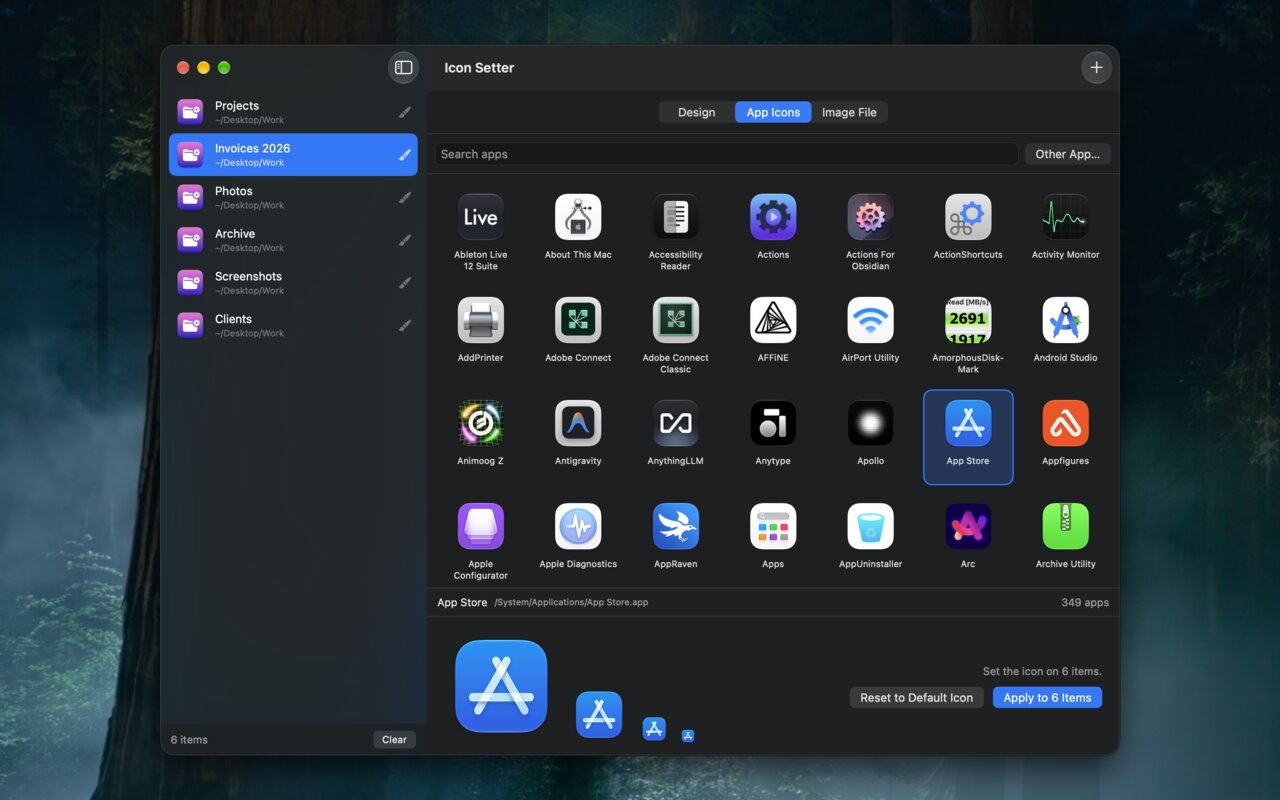
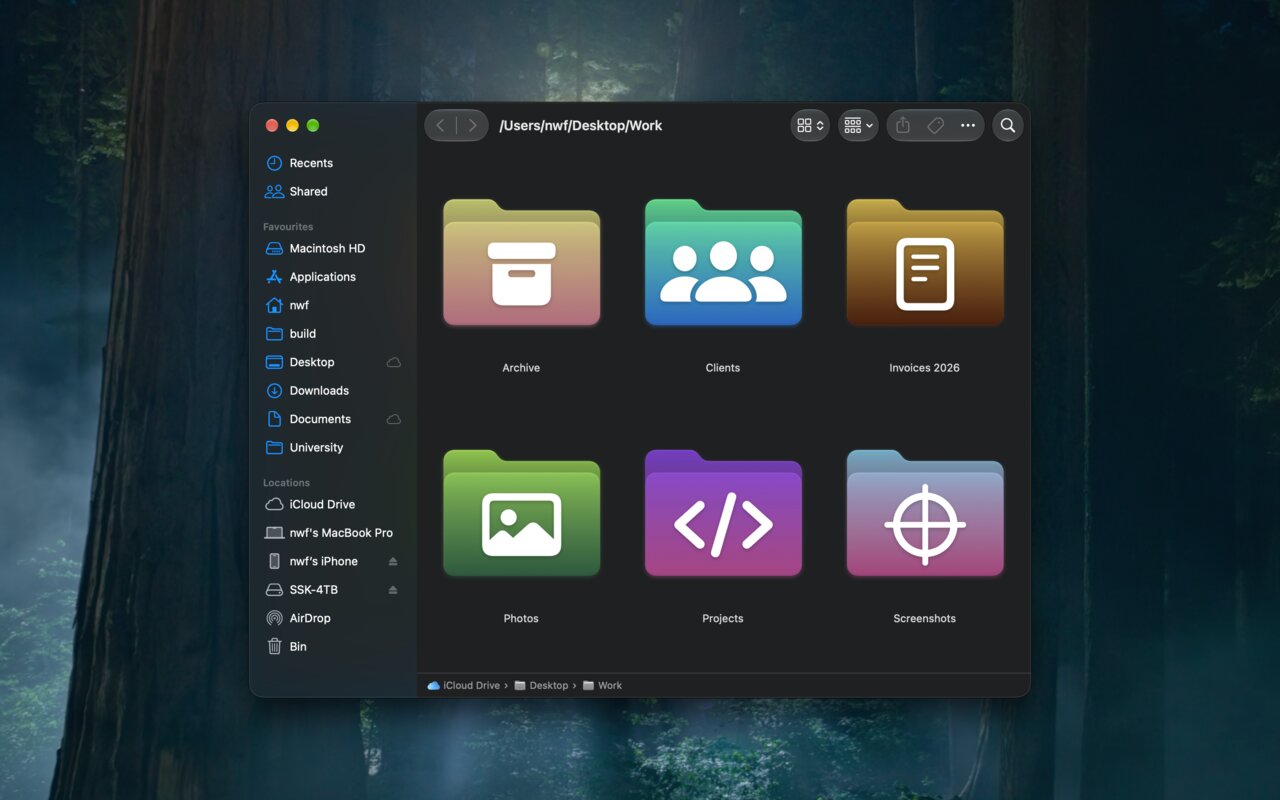
Design one from a colour and a symbol, borrow the icon of any app already on the Mac, or drop in a PNG, HEIC, SVG, PDF or ICNS.
Twenty-eight each for solid, linear and radial fills, from flat hues and earth tones to lit-to-black ramps. Every swatch paints the way the chosen fill will.
Read live from the system’s own catalogue, so it always matches what your Mac can draw, with the same search keywords and categories Apple uses.
The real system folder recoloured with your symbol on its front panel, or an app-icon style rounded square. Solid, linear at any angle, or radial.
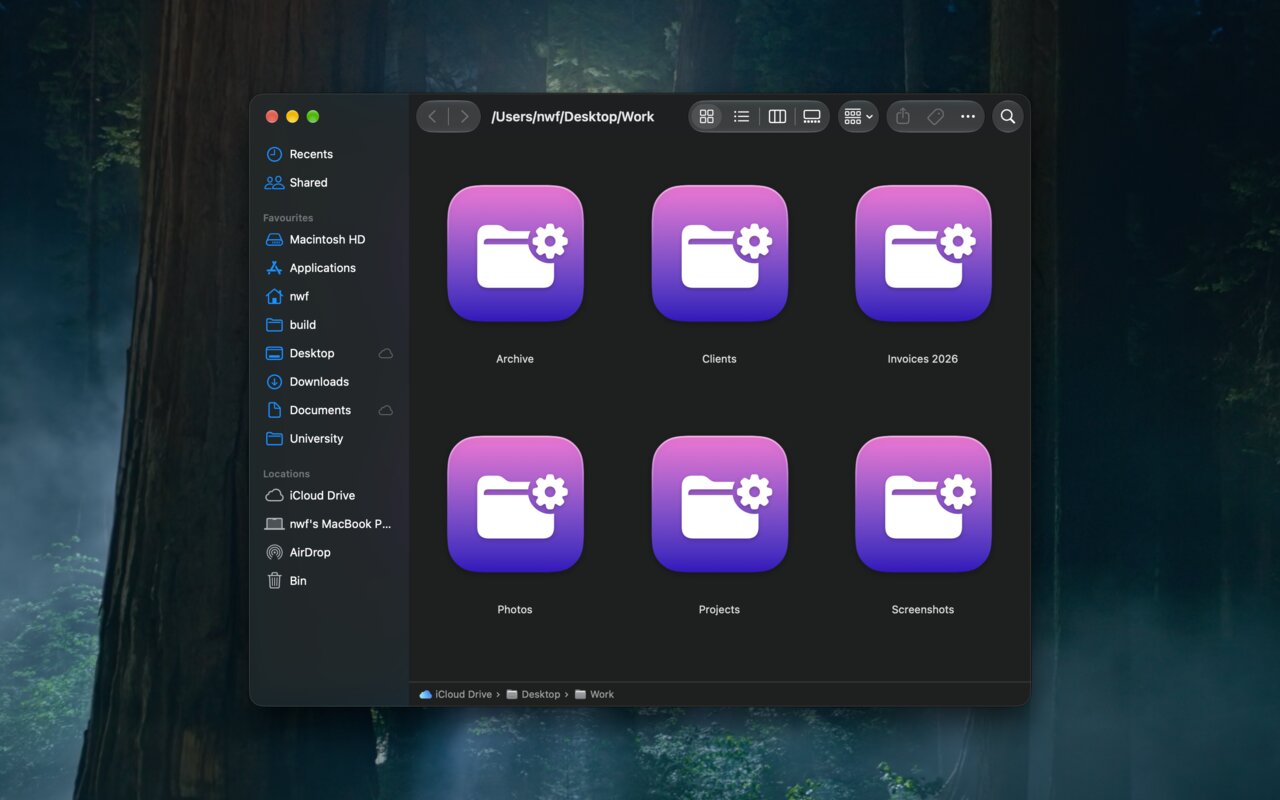
Drop a pile of folders in the sidebar, add them with ⌘O, drop them on the Dock icon, or right-click in Finder and choose Services › Set Custom Icon.
Seven representations from 16 px to 1024 px, each one rendered natively at that size rather than shrunk down from a single big bitmap.
The strip along the bottom shows 128, 64, 32 and 16 px as you work, drawn by the same view that gets written to disk.
Reset to Default Icon strips the custom icon off every target again, and the sidebar flags which items already carry one.
Runs entirely on your Mac. No network access, no telemetry.
It asks for no permissions at all, and declares none. It reads the items you add, the image you pick, and the icons of the apps already installed — never the contents of your files. The only thing kept between launches is which of the three source tabs you used last.